


 Minecraft
 Install Forge or NeoForge on your Minecraft server with the version installer for the latest builds, or upload the files manually for older or pinned versions.
Use the Version Installer
The fastest way to install Forge is through Install a Different Edition in the Game Control Panel.
- In the Game Control Panel sidebar, go to Advanced > Server Actions
- In the Install a Different Edition panel, set Edition to Forge (or NeoForge)
- Set Minecraft Version to the Minecraft version your modpack uses (for example,
1.20.1) - Set Version to the exact Forge build the pack needs
- Leave Format Server off so your existing files aren’t deleted
- Click Install Different Edition and wait for it to finish
The installer sets the Server Jar File for you, so you don’t need to touch Startup Parameters afterwards.
Manual Installation
Use the manual path when the version installer doesn’t have the specific Forge build your pack needs. The exact files you upload depend on the Forge version.
NeoForge
Forge experienced a hard fork in mid-2023 that produced NeoForge, developed alongside Forge for Minecraft versions after 1.20. Some mods now require NeoForge instead of Forge. NeoForge is a separate modloader but supports the same modding API.
Install NeoForge through the version installer or follow the Versions 1.17+ manual steps.
Versions 1.17+
Forge 1.17 and newer use a startup script or a wrapper. WinterNode runs Forge through a wrapper that launches the server in a consistent way.
Forge Wrapper
The Forge Wrapper launches Forge 1.17+ in place of the startup script that ships with Forge. Both the script and the wrapper rely on the libraries/ folder to start the server. The version installer manages that folder for you. You only need to interact with it for the cases below.
Removing Old Versions
If you use the version installer to add Forge without ticking Format Server, your server keeps any previously installed Forge versions. That doesn’t cause any problems, but the old versions take up space.
Installed Forge versions live under libraries/net/minecraftforge/forge. Each subfolder is named after the Forge version it contains.
You can delete the versions you aren’t running while the server is online. Just make sure you keep the version your Server Jar File points to.
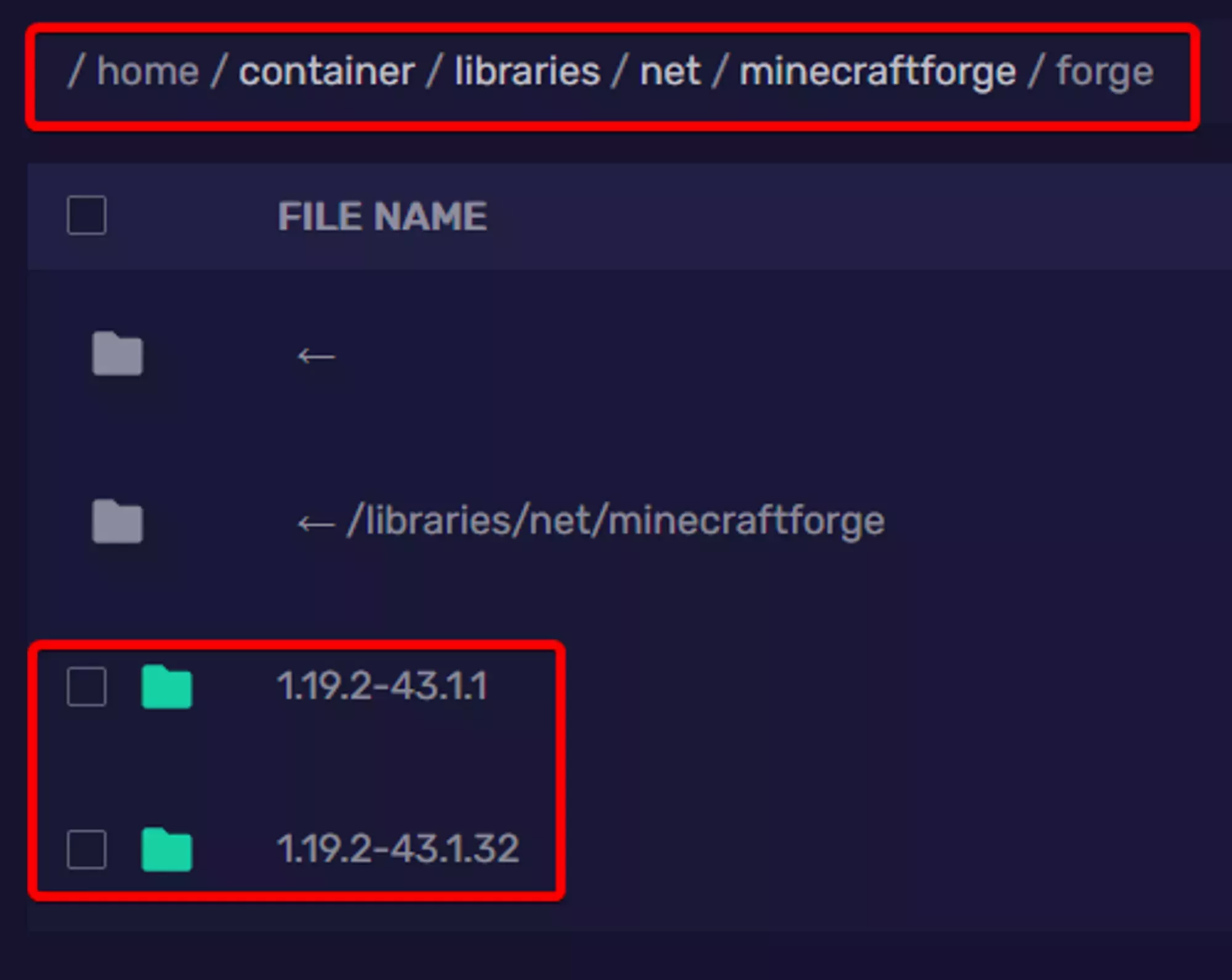
Missing Forge Wrapper File
The Forge Wrapper is required to start any 1.17+ Forge server. If you’ve deleted it or want to avoid running the version installer to restore it, download the wrapper and upload it to your server’s root folder.
Versions 1.5 to 1.16
Forge 1.5 through 1.16 launches directly from a jar. You upload two jars and the libraries/ folder, then point the Server Jar File at the new Forge jar.
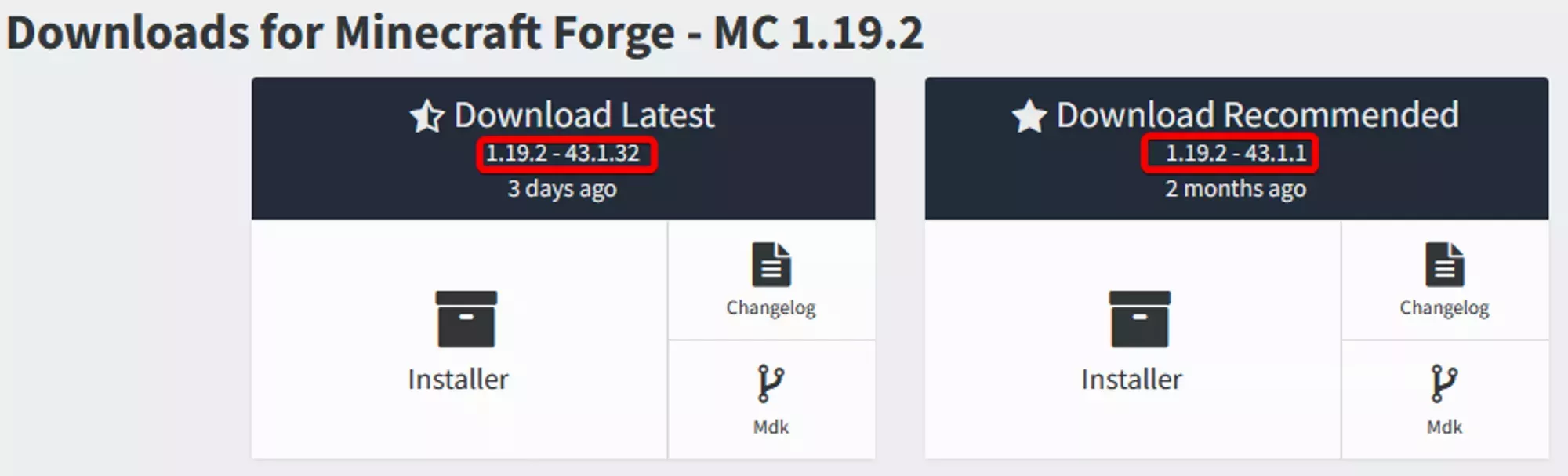
- Open the Forge website and select your Minecraft version
- Find the Forge build your modpack needs and click Installer in the download column
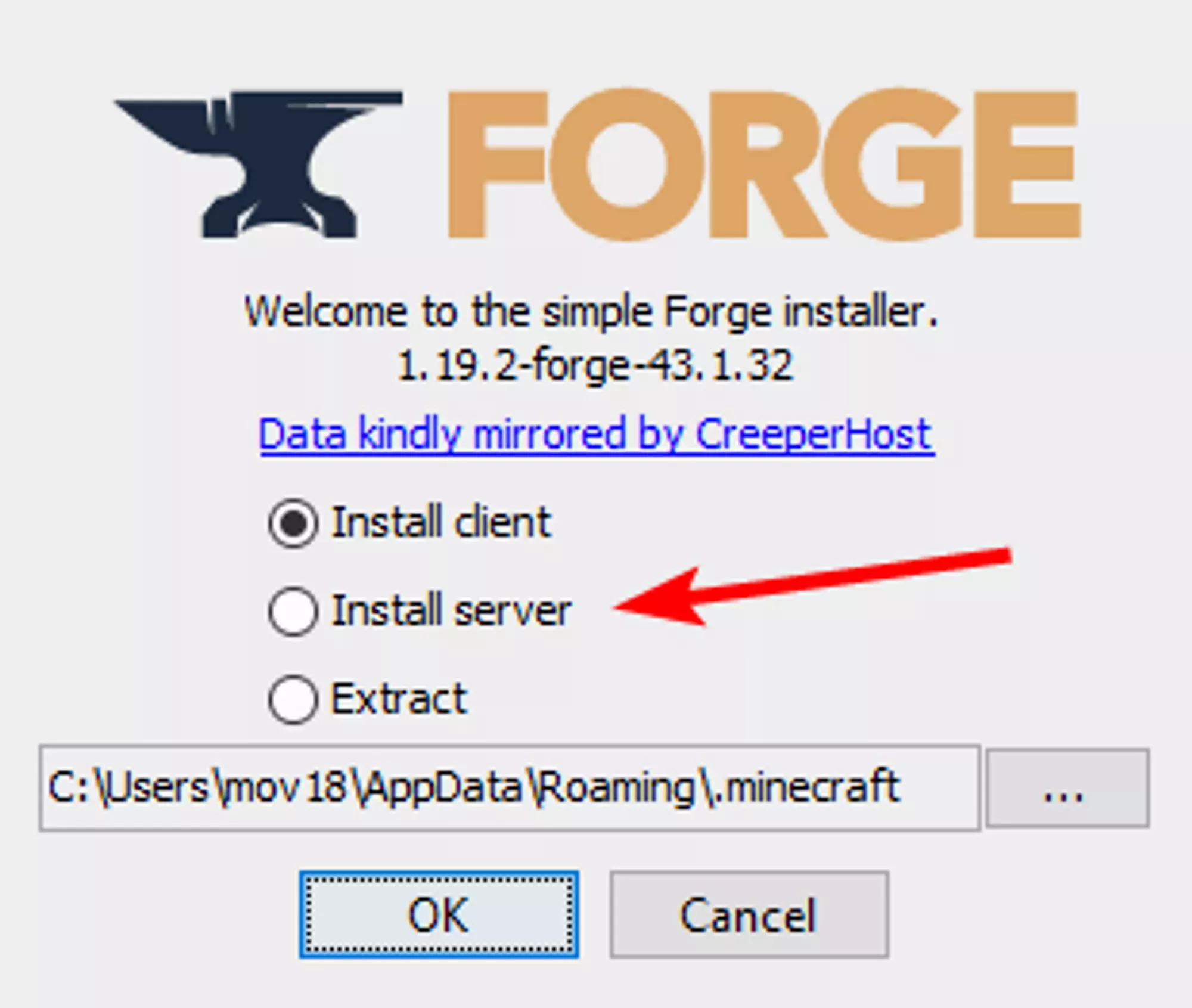
- Open the installer on your PC and select Install Server
- Click the three dots next to the path field, pick an empty folder you can find again, and click OK
- Connect to your server with SFTP
- Upload the
libraries/folder,minecraft_server.<MC-VERSION>.jar, andminecraftforge-universal-<FORGE-VERSION>.jarfrom the install folder to your server’s root - In the Game Control Panel sidebar, click Startup Parameters
- Set the Server Jar File field to the exact name of the
minecraftforge-universal-*.jarfile - Click Save and start your server
Still Not Working?
If none of the above resolves your issue, contact our support team with:
- Your Server UUID
- The Forge and Minecraft versions you tried to install
- The last 50 lines of your console output
Frequently Asked Questions
In the [Game Control Panel](https://gcp.winternode.com) sidebar, click **Advanced** and then open the **Server Actions** section. The **Install a Different Edition** panel is on that page.
No. Ticking **Format Server** deletes your world, configs, and any mods you've uploaded. Leave it off when adding Forge to an existing pack. Only tick it when starting completely fresh.
Your [Server Jar File](/help/games/minecraft-java/configuration/startup-parameters#server-jar-file) is pointing at `minecraft_server.<version>.jar` instead of the Forge jar. Update it to the Forge jar's exact name and restart.