


 Minecraft
 Serving a resource pack from your Minecraft Java server takes three properties in server.properties: resource-pack (a direct download URL), resource-pack-sha1 (the hash of that exact file), and require-resource-pack (whether players must accept it). These steps work the same on any hosted Minecraft server, whether you run vanilla, Paper, or a modded setup.
Quick answer
- Upload your pack zip to MC-Packs.net. It gives you both the direct download URL and the SHA-1 hash.
- Open
server.propertiesin the File Manager and replace theresource-packandresource-pack-sha1lines with those values (press CTRL+F to search). - Set
require-resource-packtotrueif every player must use the pack, or leave itfalseto make the pack optional. - Restart your server.
The rest of this article covers the alternatives: hosting somewhere other than MC-Packs, generating the hash yourself, and what the prompt looks like to your players.
What players see
When a player first joins, Minecraft tells them your server either recommends or requires a resource pack.
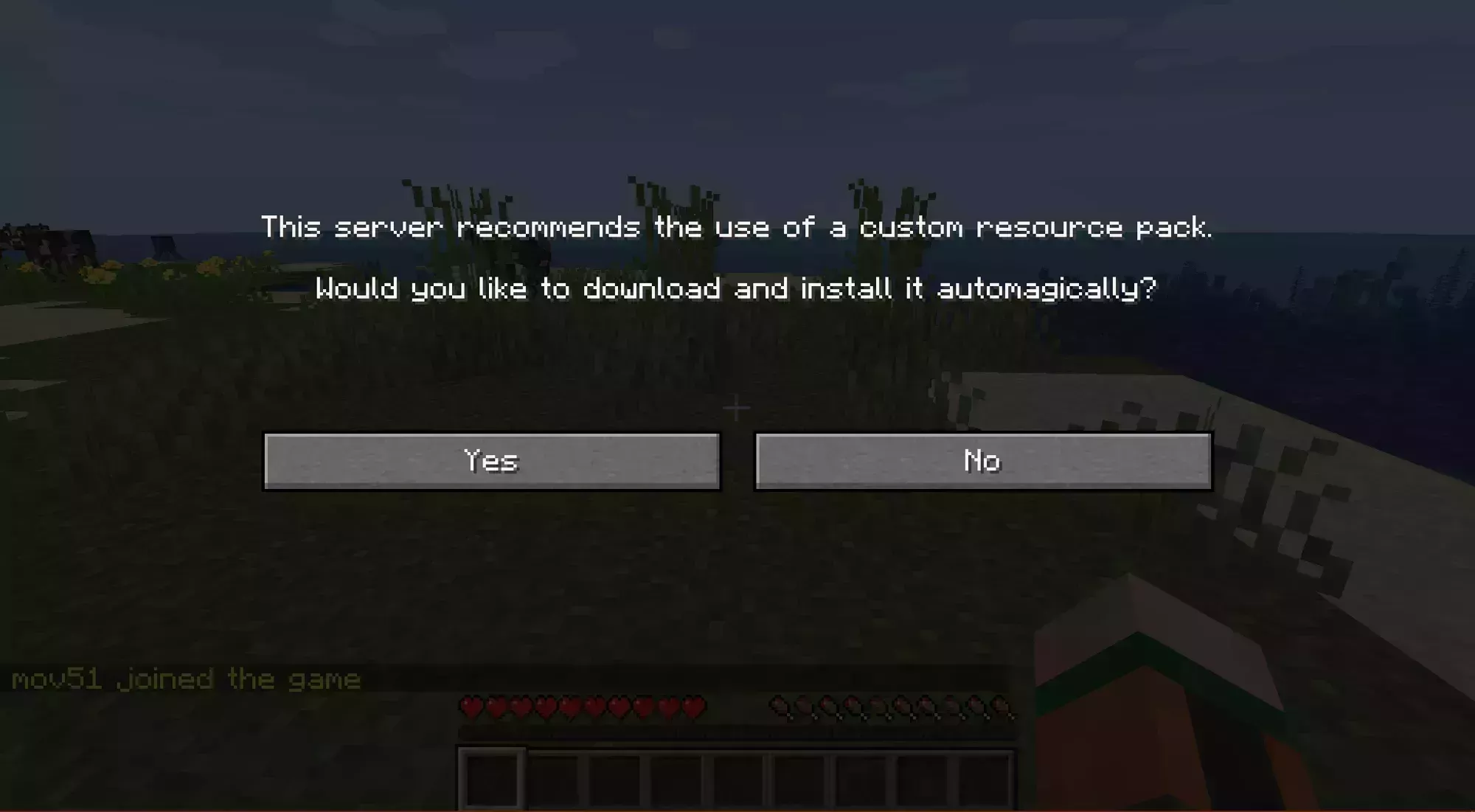
Recommended (require-resource-pack=false): the player can download the pack or continue without it. Their choice is saved against your server on the multiplayer screen.
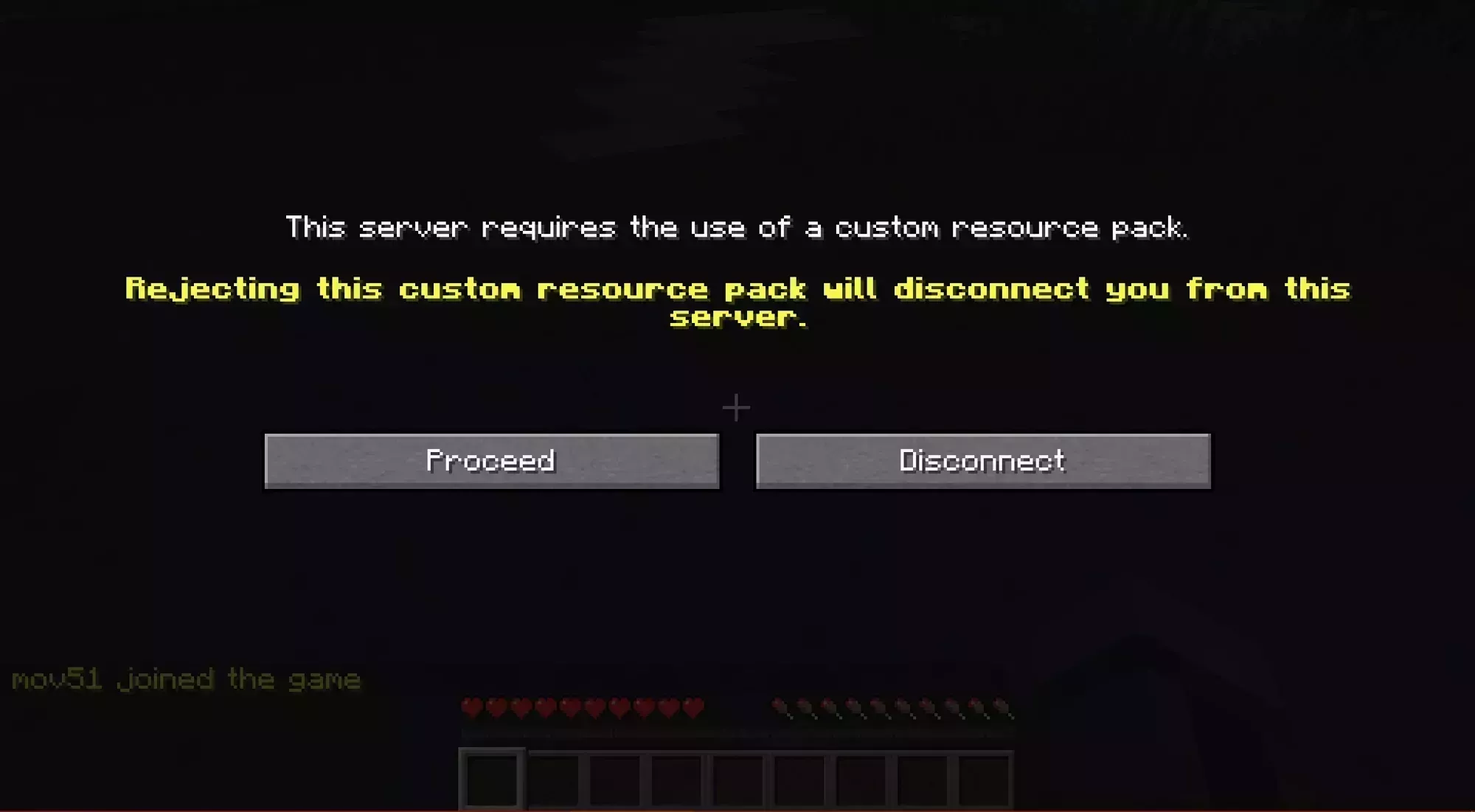
Required (require-resource-pack=true): the player can download the pack or disconnect. There is no option to play without it.
The download comes from the URL in your server.properties file, and it only happens when the pack file has changed.
Pack Enforcement
Enforcement requires Minecraft 1.17 or newer. Set require-resource-pack to true in your server.properties file and restart. Players then choose between downloading the pack and leaving the server.
MC-Packs
MC-Packs is the recommended host for packs up to 100MB. It generates your direct download URL and your SHA-1 hash for you, so you never have to compute the hash yourself.
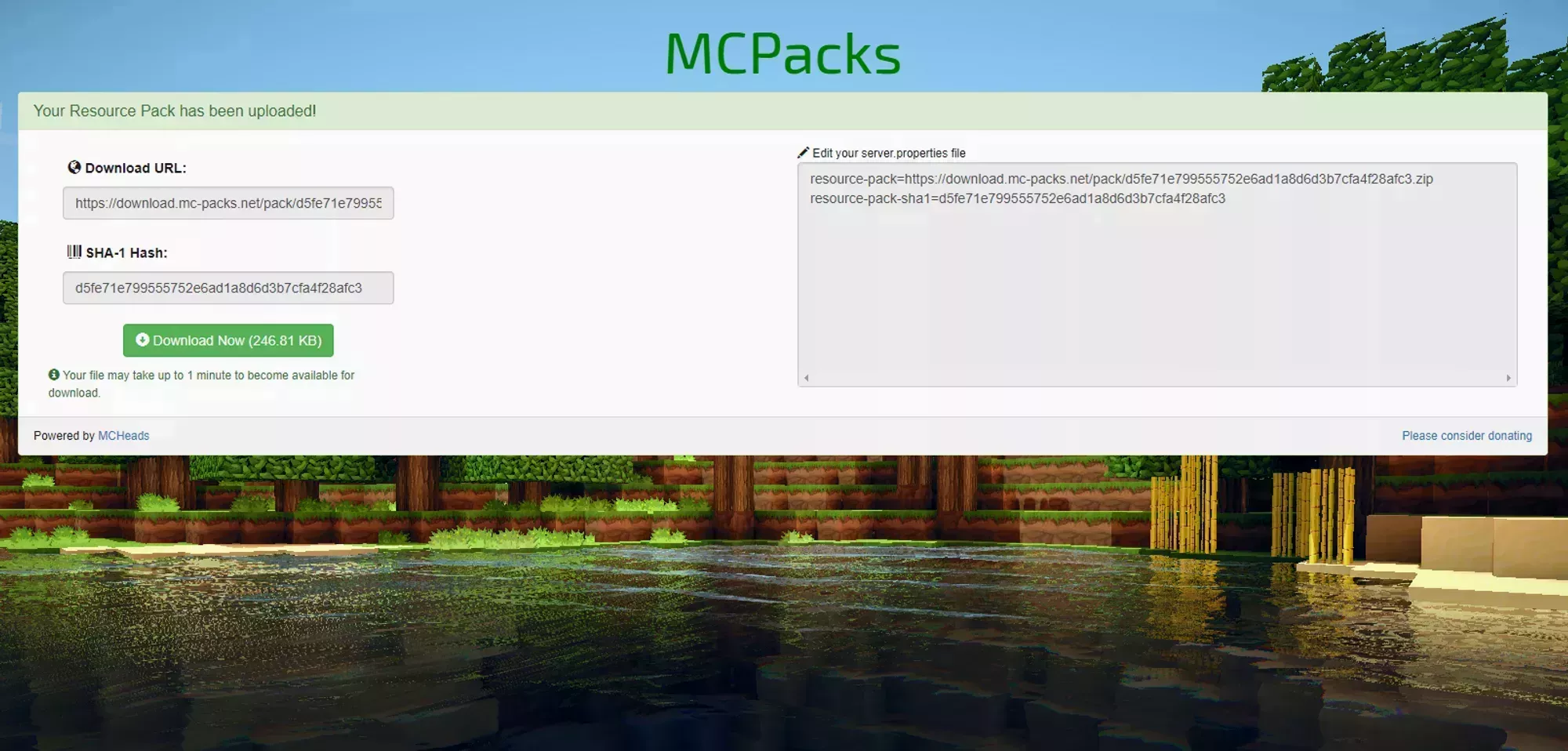
Go to MC-Packs.net and select your pack zip. When the upload finishes, the results page shows your direct download URL and SHA-1 hash, plus the two finished server.properties lines ready to copy.
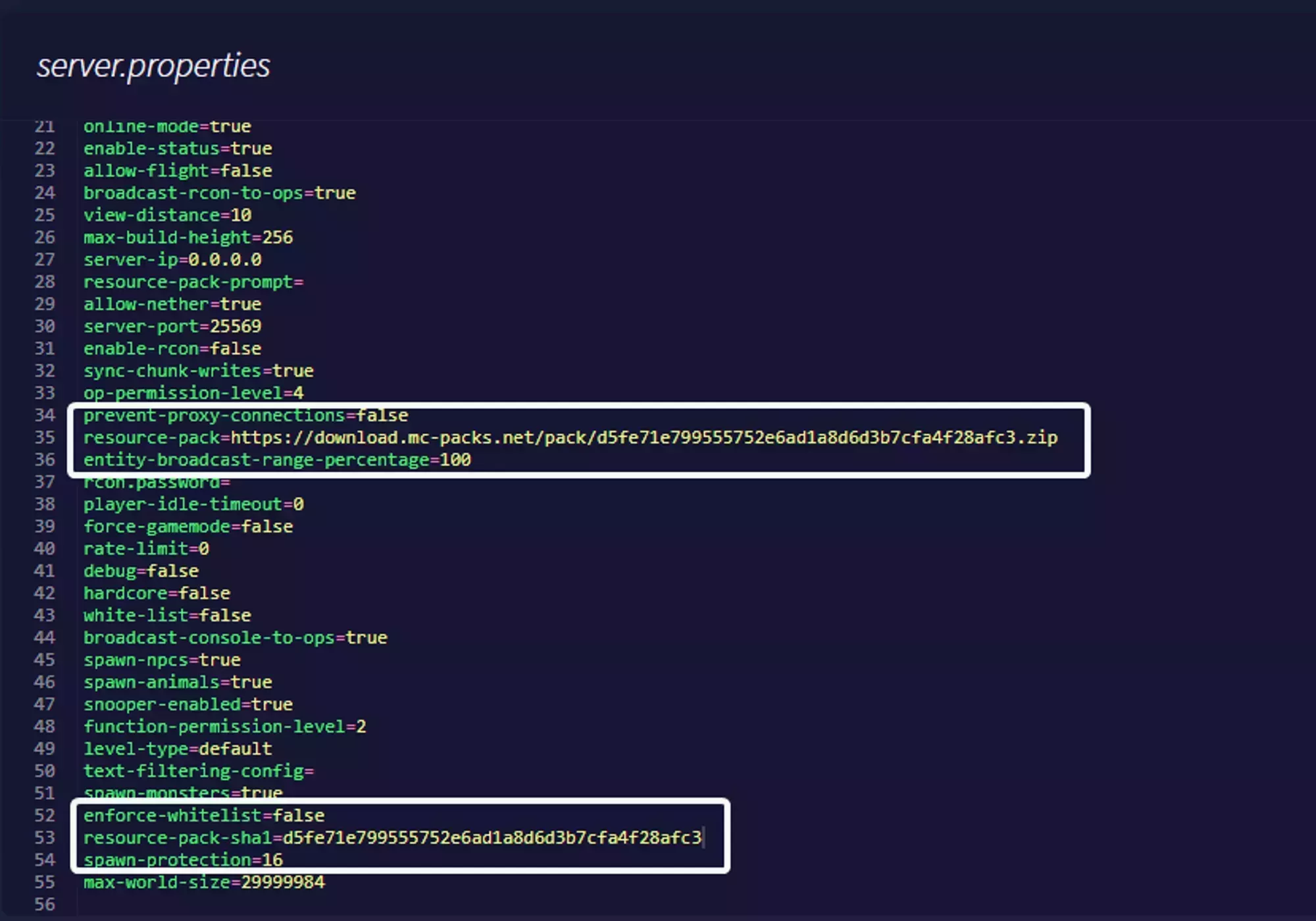
Open server.properties in the File Manager, find the resource-pack and resource-pack-sha1 lines (press CTRL+F to search), and replace them with the pair MC-Packs generated.
Restart your server. Players are offered the pack on their next join. To make the pack mandatory, see Pack Enforcement.
Uploading your Pack
If your pack is over 100MB, or you would rather use another service, the only requirement is a direct and public download link. Opening the link in a browser must start the file download immediately, with no waiting page and no preview page in between.
A normal Google Drive share link does not qualify, but Google Drive has a second link format that does. We cover Google Drive and OneDrive below and will add other services as they are requested.
Google Drive
Google Drive blocks direct downloads over 100MB because of its virus scanning confirmation page, so this option only works for packs under that size.
Share the file publicly with Viewer access. For security, link users should only be able to view the file, never edit it.
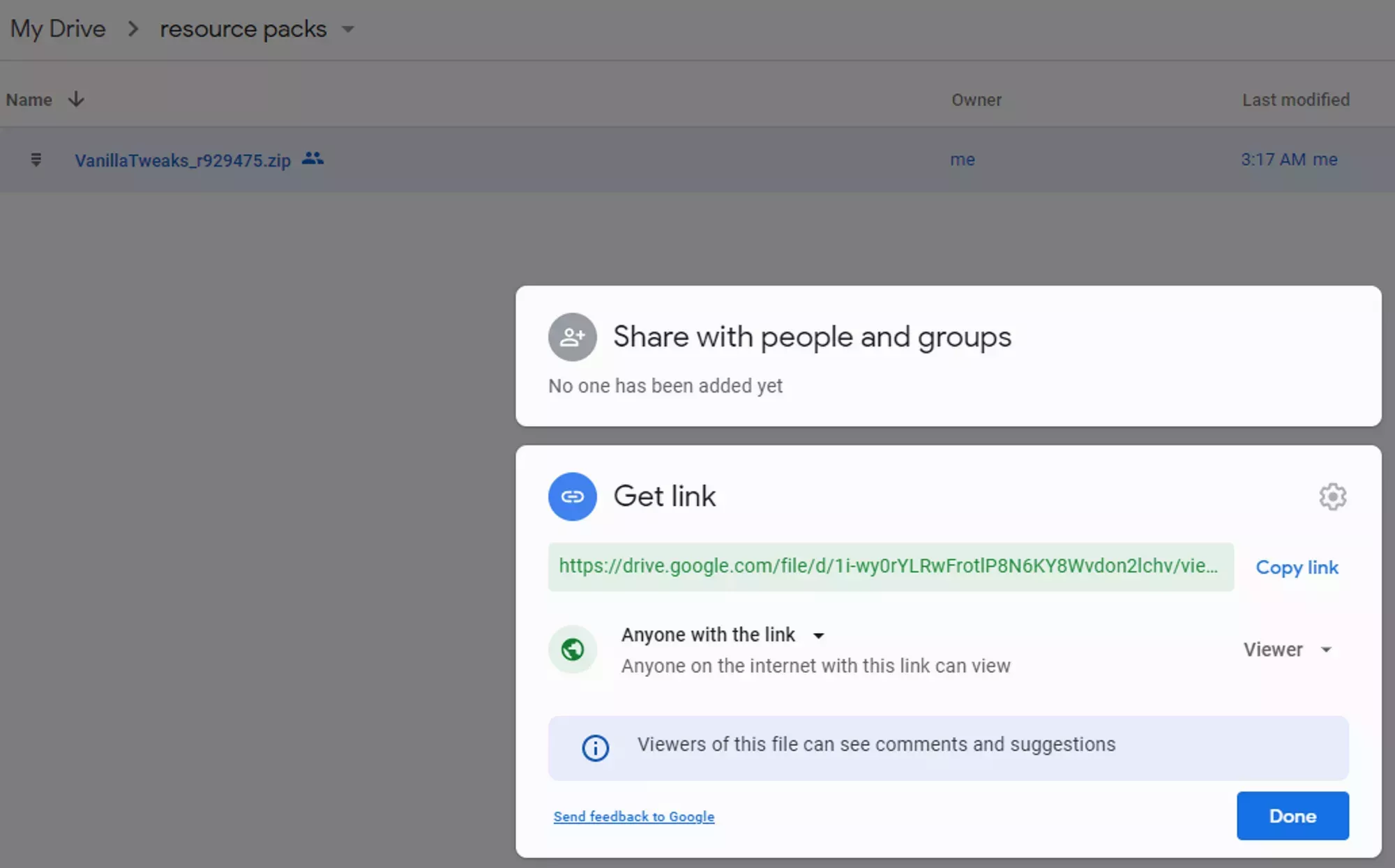
Your share link will look like this:
https://drive.google.com/file/d/1i-wy0rYLRwFrotlP8N6KY8Wvdon2lchv/view?usp=sharing
The only part you need is the ID, which sits between file/d/ and /view?usp=sharing. In the example above that is 1i-wy0rYLRwFrotlP8N6KY8Wvdon2lchv.
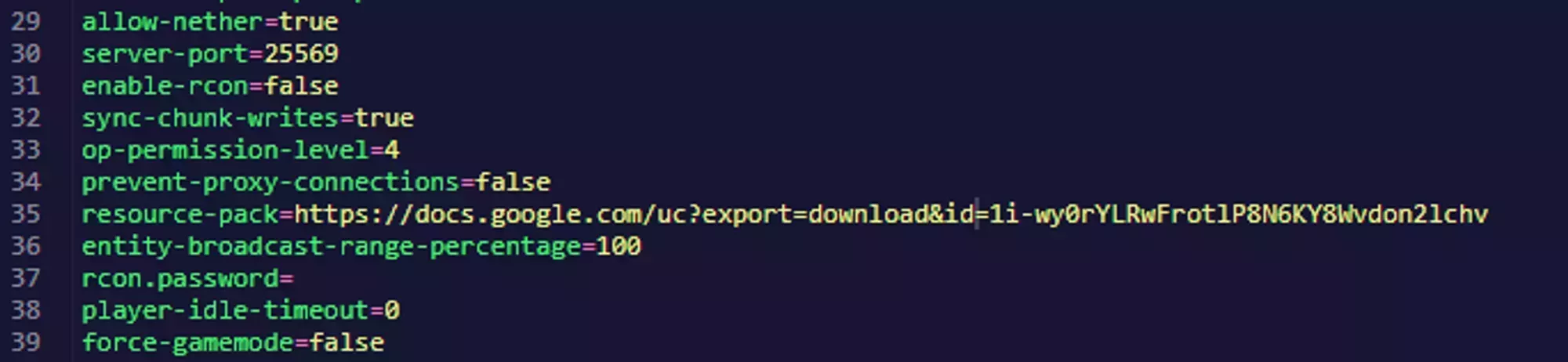
Drop your ID into this template:
https://docs.google.com/uc?export=download&id=<YourIndividualID>
For the example above, the finished link is:
https://docs.google.com/uc?export=download&id=1i-wy0rYLRwFrotlP8N6KY8Wvdon2lchv
Put that link in the resource-pack property of your server.properties file.
OneDrive
OneDrive has no download size limit, so this is the best option if your pack is somehow over 100MB.
Select the file in OneDrive and click Embed on the top ribbon.
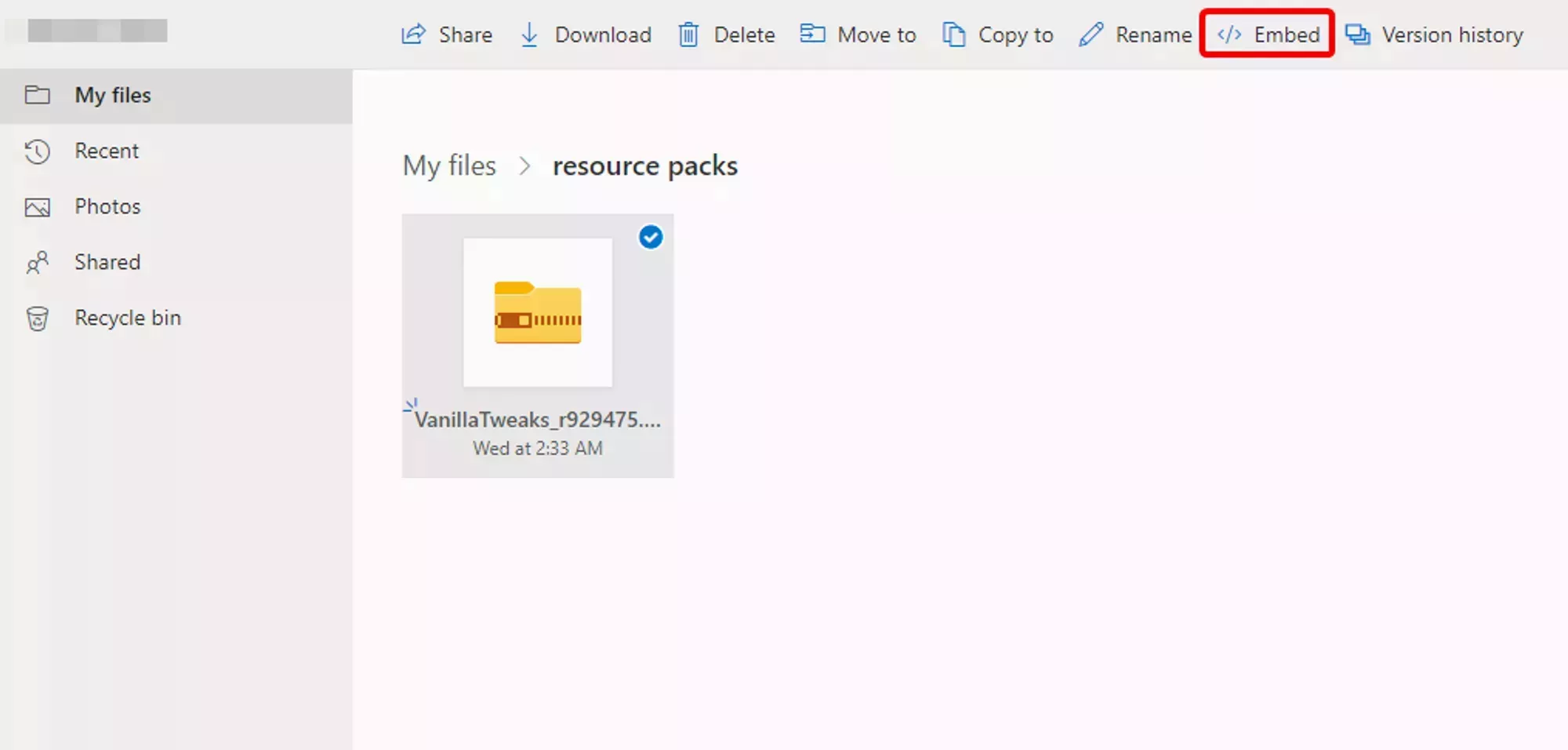
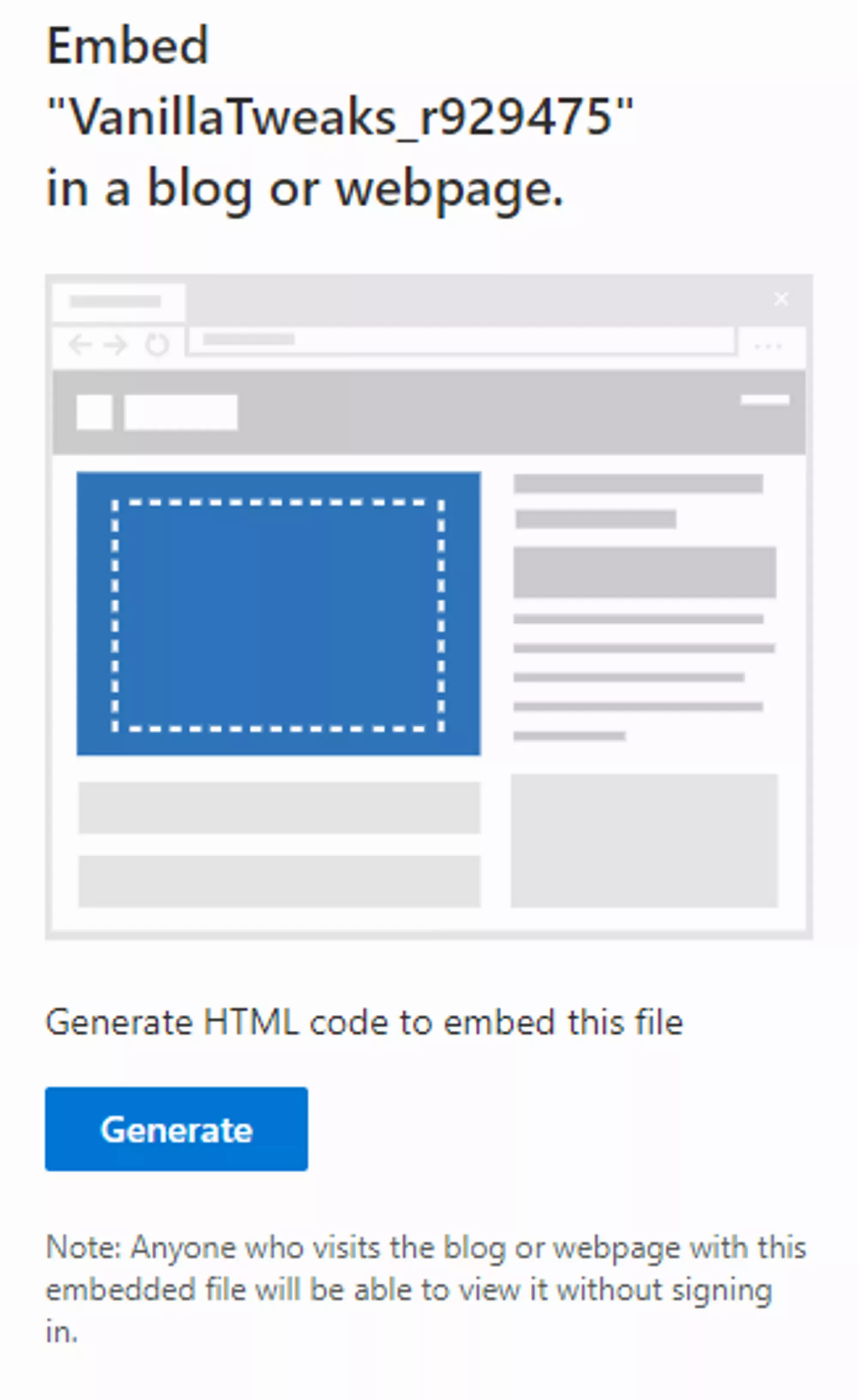
A side panel opens. Anyone holding the embed code (and the link inside it) can view the file, so there are no extra permissions to configure. Click Generate and you get code like this:
<iframe
  src="https://onedrive.live.com/embed?cid=A095864C78F76A58&resid=A095864C78F76A58!179898&authkey=ANMDCEpEt8UtWic"
  width="98"
  height="120"
  frameborder="0"
  scrolling="no"
></iframe>
Take the value of the src attribute and replace the word embed with download:
- Before:
https://onedrive.live.com/embed?cid=... - After:
https://onedrive.live.com/download?cid=...
Put that link in the resource-pack property of your server.properties file.

Generating SHA1
If you host the pack anywhere other than MC-Packs, you have to compute the SHA-1 hash of the zip yourself and paste it into resource-pack-sha1.
Drop your pack zip into our SHA-1 Hash Generator and copy the hash. The file is hashed locally in your browser via the Web Crypto API, nothing is uploaded. Any tool that outputs a SHA-1 hex hash works just as well, like emn178’s online SHA-1 checksum or sha1sum on Linux.
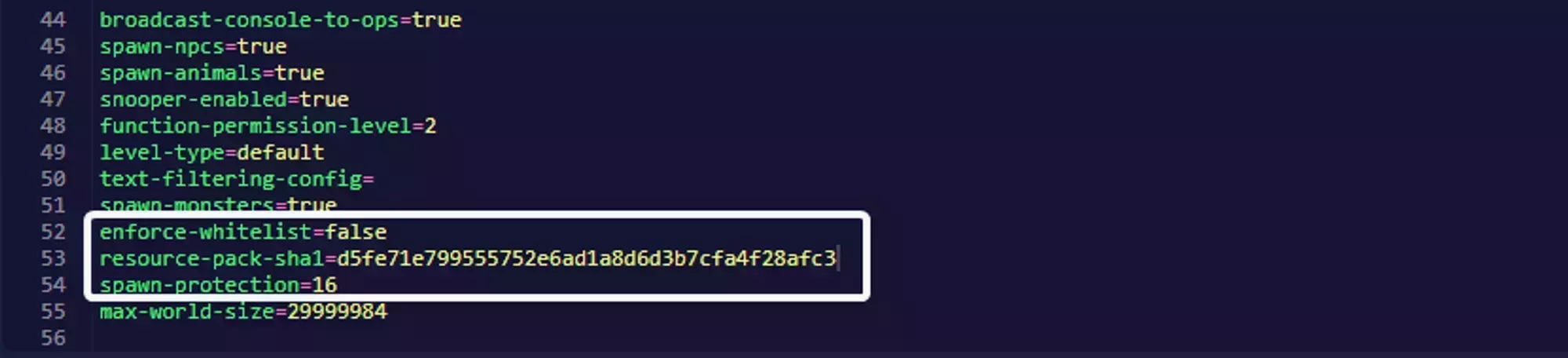
Recompute and update this value every time you re-upload the pack. Re-zipping a folder almost always produces a different hash even when the contents are identical, because ZIP timestamps, file order, and compression settings all change the bytes.
Frequently Asked Questions
Not if you host the pack on MC-Packs. It returns the direct download URL and the SHA-1 hash together. If you host anywhere else, use the SHA-1 Hash Generator on the exact zip you uploaded.
Minecraft reloads resource packs on every join and leave. It only re-downloads the pack when the file has actually changed.
The resource-pack-sha1 value is stale. Re-zipping a folder changes the hash even when the contents are identical, so recompute and update the hash every time you re-upload.