


 Palworld
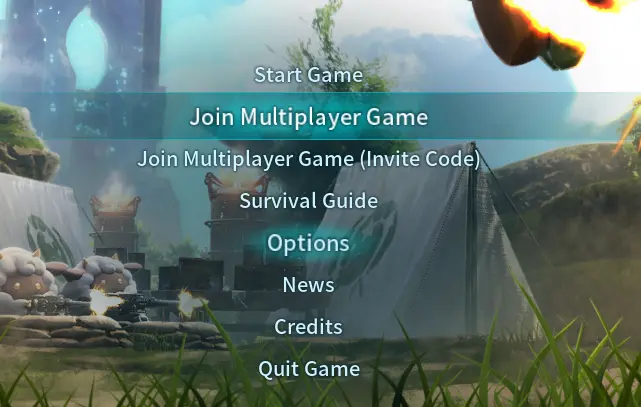
 Join your Palworld server from the Join Multiplayer Game option on the main menu, as shown in the image to the right. Players on every platform can find it in the Community Servers tab, and Steam and Mac players can also connect by IP.
Which method to use
- Steam (PC) and Mac: the Community Servers tab or Direct Connect
- Xbox, PS5, and Microsoft Store or Game Pass (PC): the Community Servers tab
Your WinterNode server is registered as a community server automatically, so it’s listed in the Community Servers tab. Crossplay is on by default, so players on every platform join the same world.
Using Direct Connect
- Find your server’s IP and port, shown under your server’s name in the Game Control Panel. See Finding your server IP for help.
- Open Palworld and click Join Multiplayer Game.
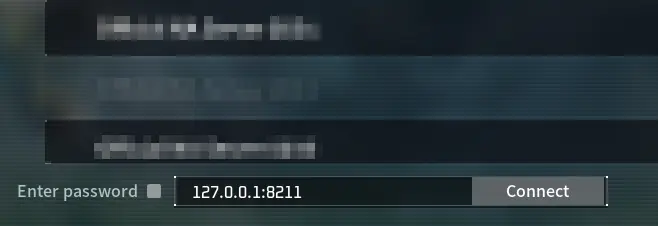
- Type your address as
<your-server-ip>:<port>in the field at the bottom of the screen. - If your server has a password, check the Enter password box to the left of the address field.
- Click Connect.
Using the server list
Your server is listed in the Community Servers tab under its Server Name. That’s the name set in Server Options, not the name your server has in the Game Control Panel server list.
- Open Palworld and click Join Multiplayer Game.
- Click the Community Servers tab.
- Search for your server’s Server Name. The list holds thousands of servers, so searching is faster than scrolling.
- Select your server to join it.
If you’re not sure what your Server Name is, check it in Server Options. If your server still isn’t in the list, Steam and Mac players can join with Direct Connect, and Xbox, PS5, and Microsoft Store players can see Still Not Working? below.
On Steam, you can also add your server to the Steam Server Browser to keep it in your favorites.
Setting your Server Name
Pick a distinctive name, so your players find your server and not one with a similar name.
- Log in to the Game Control Panel
- Select your Palworld server
- In the sidebar, click Server Options
- Enter your name in the Server Name field
- Click outside the field to save it. Server Options saves automatically and has no Save button
- Click Restart to apply the change
Still Not Working?
If you still can’t join, contact our support team with:
- Your Server UUID
- The exact error message Palworld shows
- Your platform (Steam, Mac, Xbox, PS5, or Microsoft Store) and which method you tried