


 Minecraft
 - Quick answer
- Supported versions
- Why pre-generate
- Picking a world size
- Our recommendation
- Going larger
- The Nether
- Setting your world border
- Installing Chunky
- Starting the pre-generation
- Using the vanilla world border (recommended)
- Selecting the area manually
- Common issues
- Out of memory
- Out of disk space
- Utility commands
Pre-generate your world before players join: set a world border, point Chunky at it, then let it run with the server empty. This is the biggest single reduction in lag you can make without changing how your players play.
Quick answer
- Set the border first:
execute in overworld run worldborder set 10000. The vanilla command takes a diameter, so10000gives you the 5k world we recommend. - Select the world:
chunky world overworld. - Use that border as the generation area:
chunky worldborder. - Start it:
chunky start. Check the radius and center it echoes back before confirming. - Repeat for
the_netherandthe_end. - Stop or pause anytime with
chunky cancelorchunky pause <world>.
Keep players off the server while it runs. Chunky will use every resource it can get.
Supported versions
| Platform | Supported from |
|---|---|
| Spigot | 1.13 to latest |
| Fabric | 1.16.4 to latest |
| Forge | 1.16.5 to latest |
Why pre-generate
World generation is one of the most intensive tasks a Minecraft server does. Generating it up front means players never pay that cost while exploring, which keeps resource use far more constant and the server far more stable no matter how far or how fast people travel.
It also gives you a clean upgrade path across game versions. Pre-generate inside a border, then expand the border when a new version drops so players have a clearly defined line where new content starts. If you plan to do this, start small: the world has to grow with every update, and storage adds up quickly.
Picking a world size
Decide your size before you start generating. Talk it through with your team or players first, because changing your mind later means regenerating.
Our recommendation
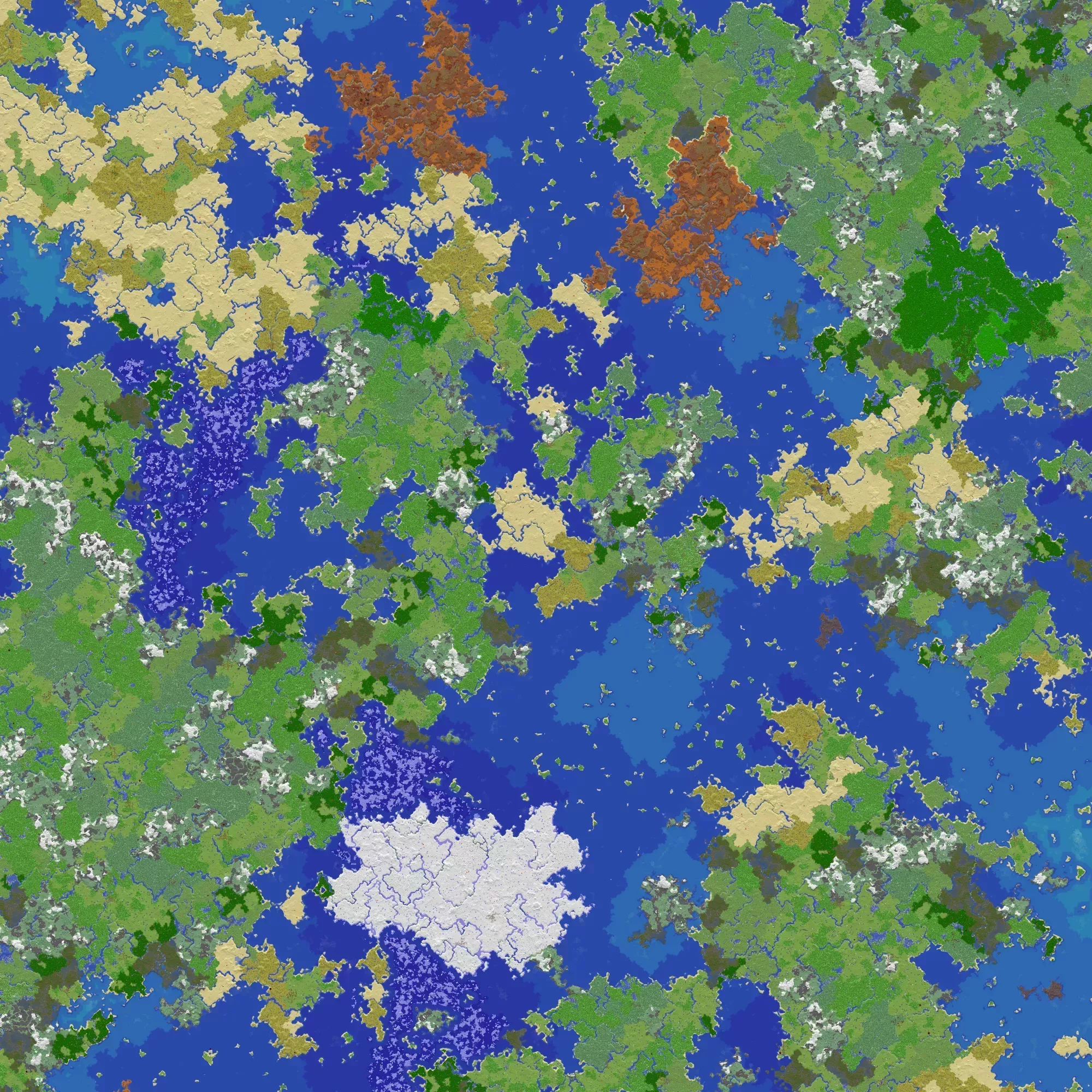
We recommend starting at 5k, meaning 5,000 blocks in each direction from 0,0. The map below was generated at that size with a random seed to give you a sense of scale. You can always expand later, and starting smaller keeps the world usable across more game versions.
Going larger
Disk and generation time scale with the area of the border, roughly the square of your radius. As a rough guide, a 5,000-block world lands around 3 GB and an hour of generation, a 10,000-block world around 9 GB and a few hours, and each further jump grows disk and time almost exponentially. Very large radii (100,000+) are effectively infeasible on any hardware.
The Nether
The Nether is 8 times smaller than the overworld, so you can set its border (and its file size) 8 times smaller and still cover the same overworld area. That’s simple for players to reason about, but the result is a much smaller Nether than most are used to.
If you’d rather keep a full-size Nether, any portal built there that would put a player outside the overworld border pushes them back to the border instead. That can confuse players who aren’t expecting it.
Setting your world border
Players need a border, otherwise they’ll walk straight out of the area you generated and you’re back to on-demand generation. The vanilla worldborder command is the most widely supported option, and Chunky can read it directly as its generation area, so that’s what we’ll use.
Borders are set per dimension, so run each command through execute in <world> run <command> using these world names. We recommend pre-generating all of your dimensions.
| Dimension | <world> value |
|---|---|
| Overworld | overworld |
| Nether | the_nether |
| End | the_end |
Start by checking the current border with execute in <world> run worldborder get. On an untouched world it reports 59999968:
execute in <world> run worldborder get
[HH:MM:SS INFO]: The world border is currently 59999968 blocks wide
If you see a different number, the border has been set before, so double check your work.
That value is a diameter, but world size is usually discussed as a radius. A world reaching from -10 to +10 is a “10 block world” everywhere else in this article, but needs a 20 block border to cover it. So for our recommended 5k size, run execute in <world> run worldborder set 10000, then run the get command again to confirm it took.
If your world isn’t centered on 0,0, move the border to match with execute in <world> run worldborder center <X> <Z>.
Installing Chunky
Chunky ships a dedicated build for each of the three major platforms. Pick the one matching your mod loader and game version, drop it in the correct folder, and restart:
Starting the pre-generation
Using the vanilla world border (recommended)
Select the world you want to generate with chunky world <world>, then run chunky worldborder to tell Chunky to use that world’s border as the generation area instead of a shape you define by hand.
Chunky replies with the radius and center of its selection. Make sure both match what you set before you go any further. Remember the border was set as a diameter, so this radius should be exactly half of it.
Once the selection and center are confirmed, run chunky start. It warns you about the center and size one more time, which is your last chance to catch a mistake. It is impossible to overstate how important it is that those values are correct.
Chunky then loops through every chunk in the selection, generating them the same way a player would. Keep the server empty while this runs.
Selecting the area manually
If you don’t use the vanilla border, or you’re using another world border plugin, define the selection yourself. It gives you more control over the shape than the vanilla border does.
Select the world with chunky world <world> and the center with chunky center [<x> <z>]. Then set the radius, using one number for a square or two for a rectangle:
chunky radius 5kgives a square 5k world.chunky radius 5k 10kgives a rectangle, 5k on one side and 10k on the other.
Radius values accept these operators:
creads the number as chunks instead of blocks.kreads the number as thousands of blocks.+/-adds to or subtracts from the current radius.
Common issues
Out of memory
Generation is intensive enough that you can run out of memory partway through. To reduce the odds or soften the impact:
- Close the server to players.
- Disable plugins you don’t need by adding
.disabledto the end of the file name. - Confirm Aikar’s flags are set in your Server Options.
- Use a frequent restart schedule, every 10 to 30 minutes, to preempt crashes and clear memory. Set
continue-on-restartto true in the Chunky config so it picks back up after each restart.
Out of disk space
Worlds grow as they generate. We provide 10 GB of storage for every GB of RAM on your plan. If you need more, open a ticket in our Discord and we’ll be happy to increase it.
Utility commands
chunky pause <world>pauses the task in that world,chunky continue <world>resumes it.chunky silenttoggles all status output off (or back on).chunky quiet <frequency>changes how often status messages print, in seconds. Default is every second;0prints a message for every chunk generated.