


 Valheim
 This guide details three ways for players to connect to your Valheim server.
Join within the Client
After making sure to Name your Server you’ll have two options to join your server from within the game. Both options require that you load a character by selecting Start Game and selecting the character you want to use, as said above it’s recommended that you use a separate character for online play. After selecting the character you want to use, close the New World dialog box if it pops up and move to the Join Game tab.
Join by IP
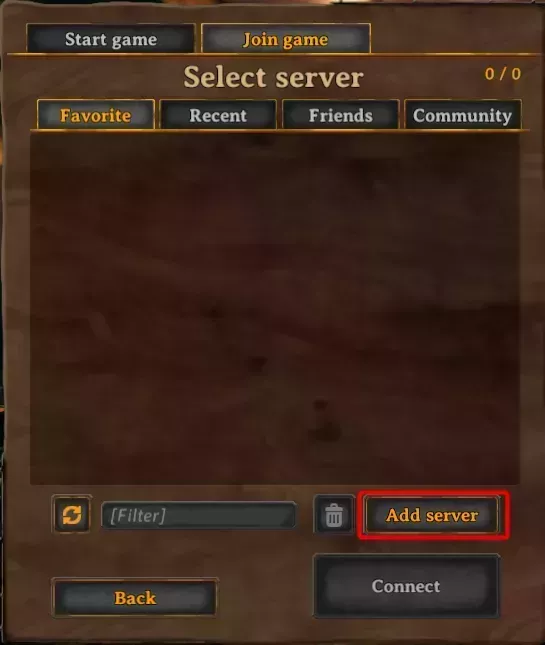
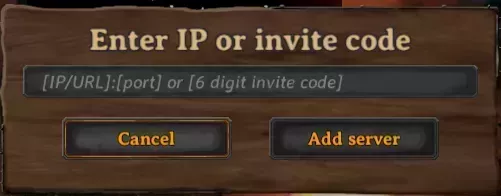
From the Join Game tab of the character select screen, click on Add server in the bottom right. Enter the IP and Port of your server, which you can find here, into the pop-up box that appears and then click the new Add server button. This will add the server to your Favorites tab and you’ll be able to use the Connect button to connect to it after selecting it in the list. Alternatively, if Enable Crossplay is on, you can use the 6 digit invite code. Check your console after startup for the code.
Filter Community Server List
From the Join Game menu, select the Community tab and filter for your server based on your Server Name. Select your server and click Connect, making sure to also click the star icon to add it to your favorites.
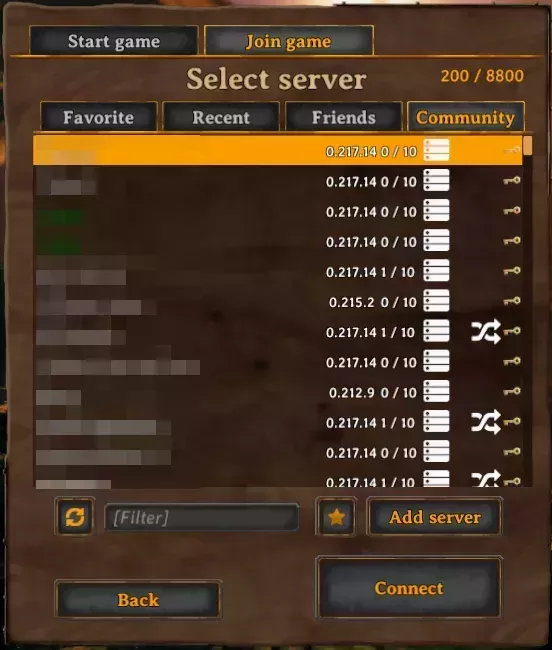
If Your Server Is Not in the Community List
The community list has been unreliable since the Valheim 1.0 launch. Before assuming your server is down, check the server is actually running and accepting players on the console page, then work through the list below. Most of these are Steam-side or client-side rather than a fault on your server, though the first is a server setting worth checking.
Check Public Server, then check Crossplay. Public Server has to be 1 for the server to be listed at all. If everyone in your group plays through Steam, with no PlayStation 5, Xbox, Nintendo Switch 2, or PC Game Pass players, Enable Crossplay should be off. Toggle [REQUIRED] Enable Crossplay off on the Server Options page, restart the server, and test. If you do have console or Game Pass players and need it on, restart with it on and test. Some servers only appear in the list once crossplay is on.
Crossplay has also caused desync and rubber-banding on servers where everyone plays through Steam. That is one more reason to keep it off for Steam-only groups. If the server lists fine but the group lags or attacks register late, check that Crossplay is off before looking anywhere else.
Restart your game client. The community list is cached client-side. A server that was listed under an old name, or that briefly went offline, can keep showing stale data until the client is fully closed and reopened.
Expect some cosmetic oddities. Two known 1.0 quirks that do not stop anyone joining:
- The server shows its IP instead of its Server Name
- A red X and a
failed to connectmessage appear against a server that is actually healthy, often clearing on its own after a few minutes
Join directly meanwhile. Adding the server by IP works whether or not the listing has caught up, as does the 6 digit invite code on a server with Crossplay on. Both put the server in your Favorites tab so you do not have to search for it again.
See Who Is Online
There are two ways to check which players are on your server.
In game: while connected, press F2. The Players section at the bottom of the panel lists every connected player with their player ID. Any player can open it, no admin access needed. The same panel shows your ping to the server.
From the Game Control Panel: the server logs a line each time a player joins.
- In the Game Control Panel sidebar, click Console
- Press CTRL+F and search for
Got character ZDOID from - Each match shows the character name of a player who joined, for example
Got character ZDOID from Naspen
These lines record joins, not who is still connected. For a live list, use F2 in game. If the join has scrolled off the console, search winternode.log instead, covered in Searching winternode.log.
Connecting from Xbox, PlayStation 5, or Nintendo Switch 2
Console players connect through crossplay rather than Steam, so the server needs Enable Crossplay turned on first. Without it, the server won’t appear in a console player’s list and they won’t be able to connect directly either.
From the character select screen, choose Join Game, then either:
- Search the
Communitytab for your Server Name, the same list Steam players use, or - Enter the 6 digit invite code shown in your server’s console after startup
Both options work the same way across Xbox, PlayStation 5, and Nintendo Switch 2.
Steam Launch Parameter - Direct Connection
You can also add your server through the Steam Server Browser under View > Servers to keep it in your Steam favorites.
The fastest way to repeatedly connect directly to your server, is by adjusting the Steam Launch Parameters for the game. Changing this option forces you to join a specific server when you launch the game and select your character.
The parameter you’ll want to use is +connect IP:PORT where IP represents your server’s IP and Port represents your server’s Port. You can find your server’s IP and port in the locations outlined here.