


Set launch parameters (command line arguments) for any Steam game to customize how it starts. This is commonly needed for connecting directly to servers, enabling specific features, or passing configuration flags.
How to Set Launch Parameters
- Open your Steam Library and find the game
- Right-click the game in the sidebar (or click the gear icon on the game’s page)
- Select Properties
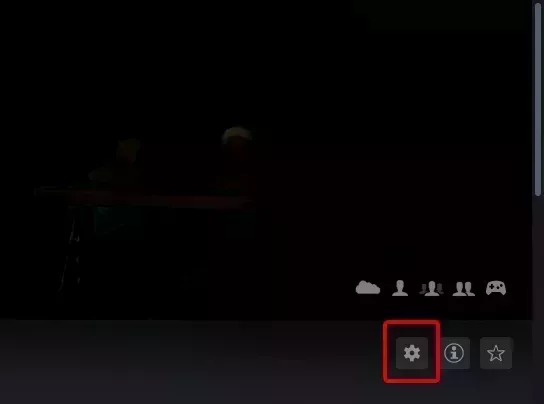
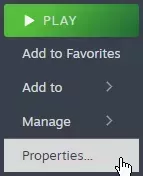
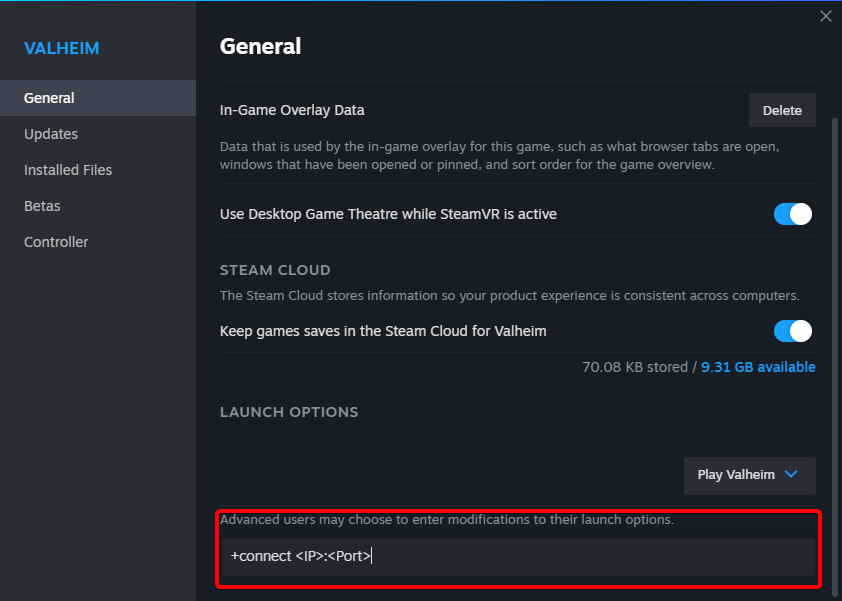
- In the Properties window, find the Launch Options field at the bottom
- Enter your launch parameters in the text field
- Close the window - settings save automatically and apply the next time you launch the game
Common Launch Parameters
These work across most Steam games that use the Source engine or support Steam’s launch options:
| Parameter | What it does |
|---|---|
+connect <IP:PORT> | Connect directly to a server on launch (port varies by game - some use the game port, others use the query port) |
-novid | Skip intro videos |
-windowed | Launch in windowed mode |
-w <width> -h <height> | Set resolution (e.g., -w 1920 -h 1080) |
-high | Set process priority to high |
-threads <n> | Number of CPU threads to use |
-malloc=system | Use system memory allocator (common for ARK, DayZ) |
Syntax Tips
- Separate multiple parameters with spaces:
-novid -windowed +connect 192.168.1.1:27015 - Parameters starting with
+are usually console commands executed on launch - Parameters starting with
-are engine flags - Remove parameters by clearing the Launch Options field