


The Game Control Panel (GCP) is where you manage your WinterNode servers. This page covers logging in as a server owner or sub-user, resetting your password, 2FA, and finding a server that isn’t showing up.
Which Login Do I Use?
WinterNode has two separate logins. The Client Area handles billing, services, and support tickets. The Game Control Panel is where you run your servers.
| You are | Log in to | With |
|---|---|---|
| The server owner (you ordered the server) | Game Control Panel | Your WinterNode account email and your panel password, or Login with your Client Area Account |
| A sub-user (someone invited you to their server) | Game Control Panel | The email you were invited with and the password you set from the invite |
| Paying invoices or managing services | Client Area | Your Client Area email and password |
Your panel account uses the same email as your Client Area account, but it has its own password. Each account also has its own 2FA setting.
Stuck? Jump to the fix:
- Wrong password, or a login error message
- Forgot your password
- Asked for a 2FA code you can’t get
- Logged in, but your server isn’t there
Logging In
Server Owners
If this is your first service with us, you’ll get an email with the subject “Account Created”. It has the link to set your panel password.
- Click the link in the “Account Created” email and set your password (check your spam folder if you don’t see it)
- Open the Game Control Panel
- Enter your email address and the password you just set
- Click Sign In
You’ll land on My Servers, the list of game servers you have access to.
Already have a panel account with the same email, from an earlier server or a sub-user invite? Your new server is added to that account. Log in with its password, or reset it.
You can also reach your server from the Client Area. Open the Services dropdown, click My Services, select the service, then click Go to Panel.
Sub-Users
A sub-user is someone the server owner invited to help manage a server. You don’t need to buy a server to be a sub-user.
- Open the invite email and follow the link to set up your account (check your spam folder too)
- Open the Game Control Panel
- Log in with the same email address the invite was sent to
- Find the shared server in My Servers, next to any servers you own
If you already have a panel account with that email, just log in. The shared server is added to your list.
On a shared server, the sidebar only shows the pages your permissions allow. For example, a sub-user with only console and startup permissions sees Console, Server Options, and Advanced > Server Actions. To get more access, ask the server owner to change your permissions (Game Panel Sub-Users has their steps).
Can’t Log In?
Find the message or situation that matches yours.
“The credentials provided do not match those we have on record.” The email or password is wrong.
- Use the email your server or invite was sent to
- Your Client Area password won’t work here unless you set your panel password to match. Use Login with your Client Area Account instead
- Still failing? Reset your panel password
No “Account Created” email. Check your spam folder. Had a server or a sub-user invite with this email before? You already have a panel account, so reset its password.
“Login with your Client Area Account” shows an error.
| Message | What to do |
|---|---|
| Couldn’t find an associated account on the panel. or This account has quick login disabled. | Log in with your panel email and password, then turn on Quick Login (steps below) |
| More than one panel account is linked to your login. | Log in with your panel email and password. If it keeps happening, contact support |
To turn on Quick Login:
- Log in to the Game Control Panel with your email and password
- In the sidebar, click Account Settings
- Find the Quick Login box and click Enable Quick Login
Resetting Your Password
Panel passwords need at least 8 characters, with an uppercase letter, a lowercase letter, and a number.
From the Login Page
This works for both owners and sub-users.
- Open the Game Control Panel login page
- Click Reset Password below the sign-in buttons
- Enter the email address on your panel account and send the request
- Open the reset email and set a new password
The panel shows Password reset instructions have been sent to your email if there is an account associated with it. No email? Check your spam folder and make sure you entered the email on your panel account.
From the Client Area
Server owners can also set a new panel password from the Client Area. This changes the password on the panel account that owns the server. Your Client Area password stays the same.
- Open the “Services” dropdown in the Client Area navbar and click “My Services”.

- Select a service from the list.

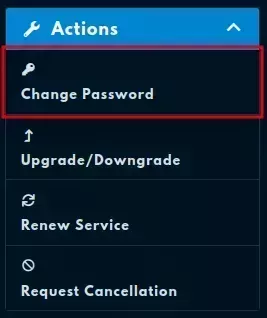
- Click on “Change Password” in the Actions sidebar.
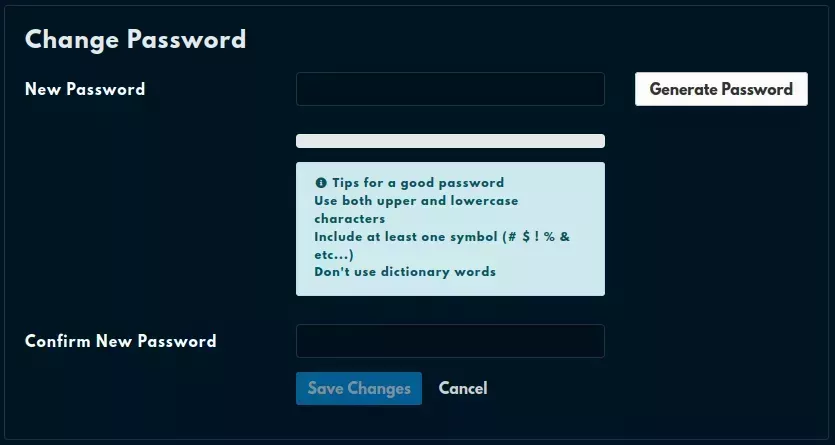
- Enter a new password into both of the provided fields and click “Save Changes”.
If you only have sub-user access and don’t own a server, use Reset Password on the login page.
While You’re Logged In
- In the Game Control Panel sidebar, click Account Settings
- In the Update Password box, enter your Current Password
- Enter your new password in New Password and Repeat New Password
- Click Update Password
To sign out every other device using your account, turn on Invalidate Sessions before you click Update Password.
Two-Factor Authentication (2FA)
Panel 2FA settings are in the sidebar under Account Settings, on the 2-Factor Authentication tab. The Security Controls page is for API keys, not 2FA. To turn 2FA on, follow Securing Access.
Asked for a code at login? Your account has 2FA turned on. Enter the current code from your authenticator app in the Two-Factor Token field.
If the code is rejected, wait for the next code and try again. Make sure your phone’s clock is set automatically, since these codes depend on the time.
Lost your phone or authenticator app?
- If you saved the setup key, add it to an authenticator app on your new device. That’s the code shown under the QR code when you turned on 2FA, and it gives you working codes again.
- If you didn’t save it, contact support using the steps at the end of this page.
Logged In but Your Server Is Missing
My Servers lists every server your account can access. If a server isn’t there, check these:
- Just ordered? If the service still shows Pending in the Client Area, see How Long Server Setup Takes After Ordering.
- Wrong account? Your name shows at the bottom of the sidebar. Your current email is in the Update Email Address box under Account Settings.
- Invited as a sub-user? The server only shows in the account that uses the email you were invited with. Ask the owner to check the server’s Management > Subusers page. If your email isn’t listed or doesn’t match, the owner can add you again with Add User.
- Lots of servers? Use the Search bar at the top of My Servers.
Can see the server but not the page you need? That’s a permissions limit. Ask the owner to click Configure Permissions on your entry on the Subusers page.
Finding Your Server
Once logged in, you’ll see your server list.
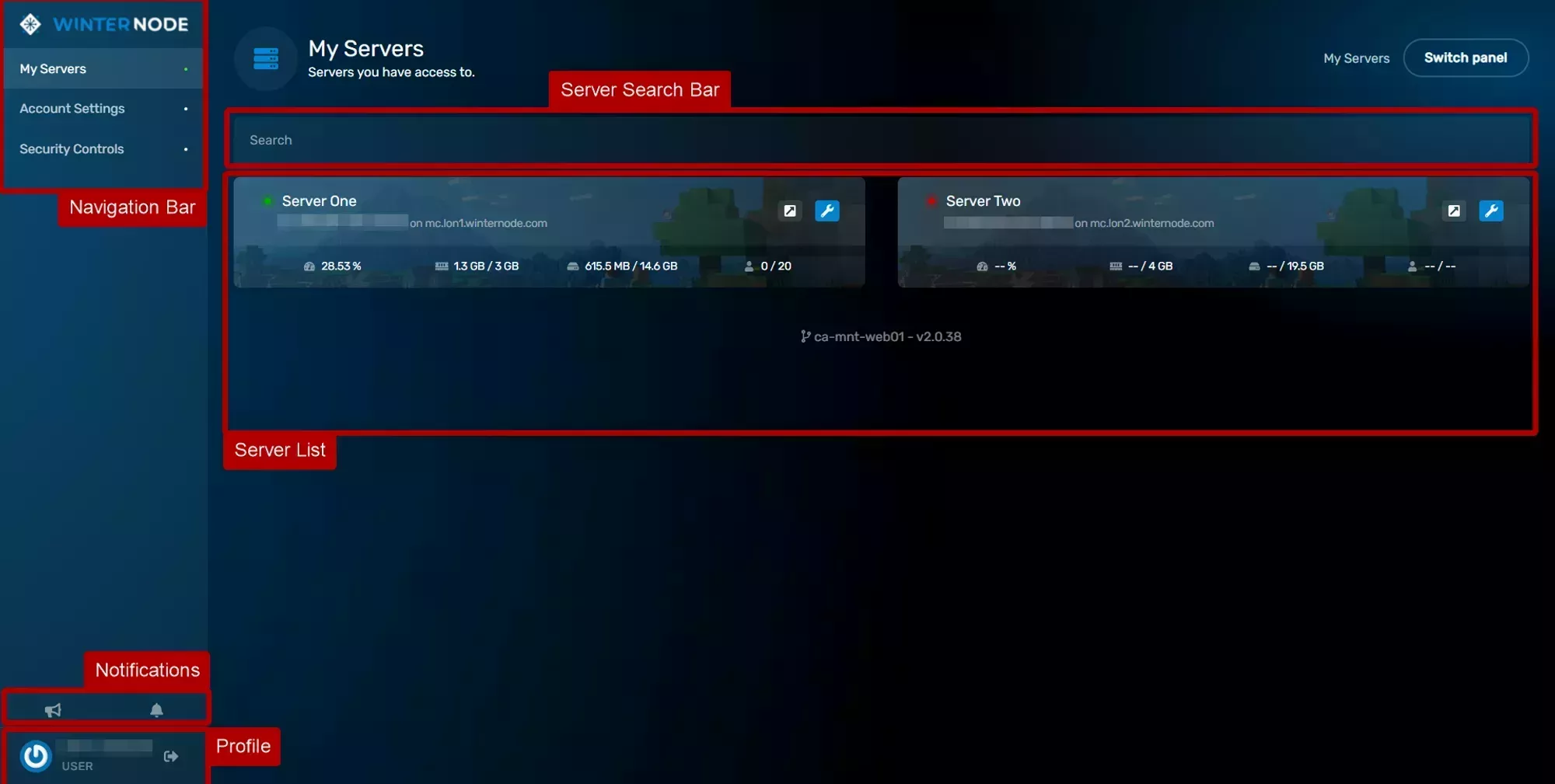
Each server card shows:
- Status: a green dot when the server is running, red when it’s stopped
- Name: the display name of your server
- Address: the IP:port or domain players use to connect
- Node: the machine your server runs on (the “on …” line)
- Usage: current CPU, RAM, disk, and player count
Click the server’s name or the wrench icon to open its management page. The arrow icon next to the wrench opens a pop-out console window.
Support may ask for your server’s UUID. See Finding Your Server UUID.
Server Page Layout
When you open a server, you’ll land on the console page.
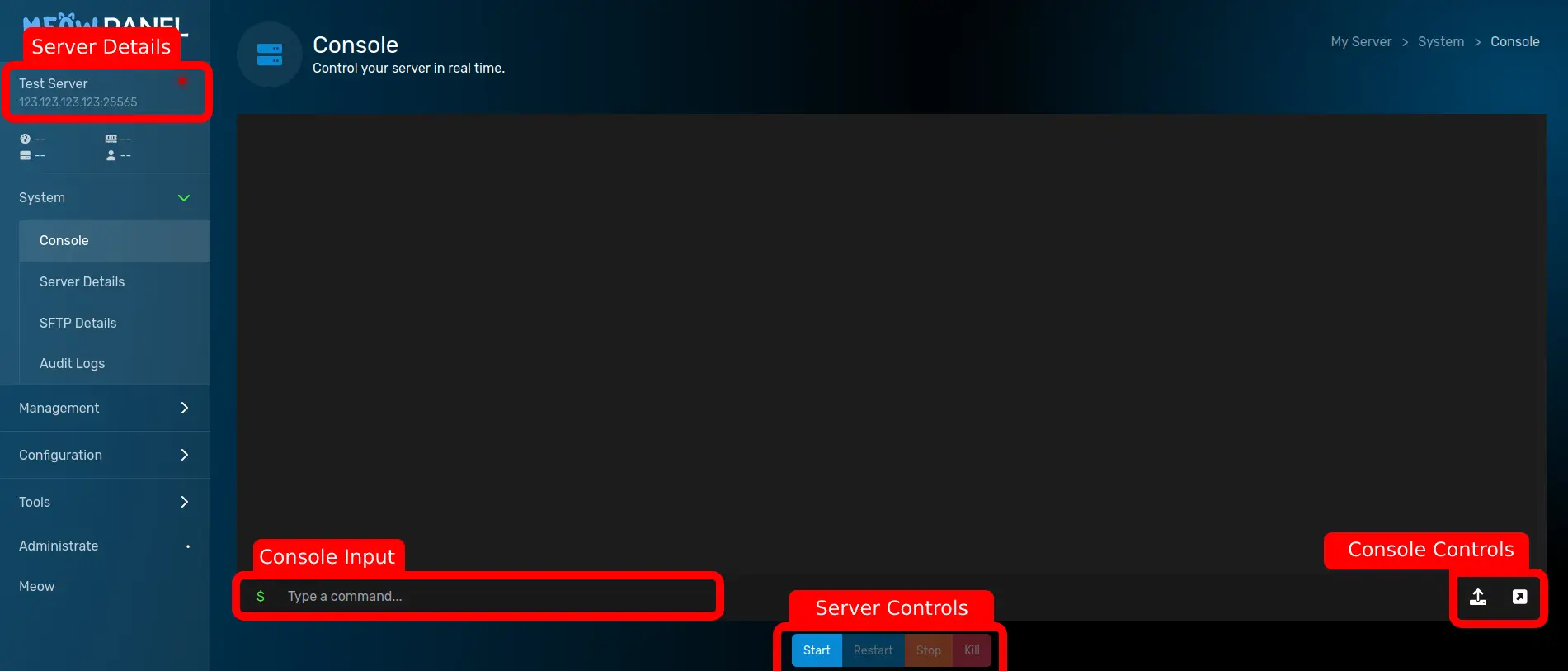
From here you can:
- Console to view server output and send commands
- Server Controls to start, stop, restart, or kill the server
- Usage Graphs for live CPU and memory usage
The sidebar gives access to everything else: file management, databases, schedules, startup configuration, and more.
Still Not Working?
Contact our support team, or open a ticket from the Client Area, with:
- Your Server UUID, if you can see the server
- The email address you’re trying to log in with
- Whether you’re the server owner or a sub-user
- The exact message the login page shows
Frequently Asked Questions
Not necessarily. They are separate accounts with separate passwords, even though they use the same email. To sign in with your Client Area login instead, click Login with your Client Area Account on the panel login page.
If you saved the setup key when you turned on 2FA, add it to an authenticator app on your new device to get working codes again. If you didn't save it, contact support. Never send your password or a 2FA code to anyone, including support.
A shared server only shows up in the account that uses the exact email you were invited with. Log in with that email, or ask the server owner to remove you and add you again with the email you use.
Sub-users only see the pages their permissions allow. Ask the server owner to update your permissions on the server's Subusers page.